Image Publication Workflow
This guide explains how to create and publish FAIR image and video datasets using O2A services. It provides a high-level introduction to the topic and is intended to serve as a starting point for developing standard operating procedures specific to your devices. For simplicity we will refer to photos (still images) and videos (moving images) as images.
Goals
The workflow described below has been developed to enable the publication of findable, accessible, interoperable and reusable (FAIR) image datasets. For this we recommend the usage of the FAIR Digital Object for marine images (iFDO) standard if your images are part of the marine domain. An iFDO is a JSON File which describes the dataset and its files (see example). It contains the information necessary to identify the dataset and images (e.g. handles), as well as information about the dataset's context and content. Images are identified by their filename and by an UUID, a random string which needs to be present in the image metadata. The standardised nature of the iFDO allows for easier harmonization of different datasets for example for AI applications. It also enables usage of different tools at different steps of the workflow, thereby streamlining the process.
Preparation
It is worth thinking about data management before you embark on an expedition or measurement campaign, as this will simplify analyzing and publishing your data later on.
You should describe your measurement setup at the O2A REGISTRY (see the O2A REGISTRY documentation for more details). The entries of your measurement system are used to automate and simplify steps in the publication workflow and can be used to document the state of the measurement system. We recommend that you at least create an item for your measurement platform (e.g., the remote-operated vehicle, buoy, ship, mooring, etc.) and the cameras attached to that platform. If your measurement platform is not a device (e.g., diver, seal, etc.), please find another fitting persistent identifier (e.g., in case of a diver, an ORCID).
Additionally, you should make sure that all collaborators of your future datasets have an ORCID entry. This will again make some steps of the workflow easier and help your data publisher.
We also recommend creating a data management plan for your campaign. For this workflow, at least create a list of what files your cameras will create (e.g., amount, file type) and in what directory structure you are planning to store them. Also decide who will be responsible for the data management during the cruise. These information are especially important if you intend on working with a data steward, who is likely not familiar with your measurement setup and group dynamics.
Process
The workflow is divided into four phases that work like a funnel. While you are still quite free to organize your data management in the acquisition and archiving step, the goal of the process step is to create a standardized dataset that can easily be published, for example, on PANGAEA. However, adhering to a standard and data management plan in the initial stages simplifies subsequent steps. In the following, we will discuss the best practices for each step.
mermaid
---
config:
  layout: elk
  look: classic
---

flowchart LR
    Publication@{ shape: dbl-circ, label: "Publication" }
    Acquisition((Acquisition))
    Archive["Raw Data Archival"]
    Processing["Dataset Creation"]

    Acquisition --> Archive
    Archive --> Processing
Processing --> PublicationAcquisition
The acquisition step is predominantly dictated by your measurement goals. Nevertheless there are some technical details which can influence the data quality: The data format and compression can have large impacts on the (re-) usability of your data regarding the information content. Please see our extensive guide for more information.
As explained in the goal section, images are identified by an UUID in their metadata header. The dataset creation step is greatly simplified, if your acquisition system can already add UUIDs to your image metadata header. See the iFDO documentation for the exact location in the metadata header.
Raw Data Archive
External drives can fail or go missing, processing can corrupt data, or the existence and location of the data can be simply forgotten. After acquisition, we therefore strongly recommend archiving your raw data as soon as possible. This can be achieved by uploading your data to O2A INGEST Files. It uses the devices in the O2A REGISTRY as a basis for its directory structure and permission system: Each file can therefore be connected to a device, and only contacts of this device have access to its files.
If you acquire your data on one of the major German research vessels (Polarstern, Meteor, Merian, Sonne) or on the Heincke, you can use the DShip Mass Data Management (MDM) system instead. It provides a network-accessible file share, which content is automatically transferred to O2A INGEST Files at the end of each expedition. For this to work, your device has to be defined in the O2A REGISTRY and has to be listed as a mission item (see PS153 as an example) for your respective expedition.
Dataset Creation & Processing
The dataset creation step includes quality control, light processing and metadata creation. While the quality control and processing are optional, metadata creation is needed to ensure FAIRness of the dataset. If your images and videos are part of the marine domain, we recommend using the FAIR Digital Object for marine images (iFDO) metadata standard to describe your dataset. Depending on the dataset, some of its metadata-fields can be derived from other metadata repositories (e.g. the O2A REGISTRY) or from the dataset itself. However, others, such as the dataset abstract, need to be created manually. You can choose from a range of tools to help you create iFDOs and meet your specific automation and processing demands.
iFDO Creator
The iFDO Creator is a beginner-friendly graphical iFDO editor. It provides step-by-step guidance through the creation and editing process and integrates other metadata services, such as the O2A REGISTRY and the DSHIP Land System. It is available as a web application and as an installable desktop variant. The web version can be used directly from the browser but cannot modify your local files. This means that if your images do not have UUIDs present in their metadata, you will have to use the desktop version instead. However, we recommend trying out the iFDO Creator by creating an iFDO using the web version and these sample images[1] if you have not created one before. The desktop version has access to your local files and can therefore also add UUIDs to your images if they are missing. It also features a navigation curation tool, which can be used to filter and smooth navigation tracks produced by acoustic positioning systems.
Marimba
Marimba is a Python framework and pipeline runner for processing and packaging FAIR image datasets with iFDOs developed by CSIRO and MBARI. While it is less beginner-friendly than the iFDO Creator, it is more flexible and automation-oriented. Marimba's workflow is centered around a project directory. Using the Marimba command line interface (CLI), you first import pipelines and then collect, process, and package the data into a dataset. The imported pipelines define what data is included in the project, how the data is processed, and what data and metadata are packaged into the dataset. Usually a pipeline is defined per camera system. So in the case of OFOBS there is a pipeline for the still and the video camera. Marimba also creates iFDOs in the packaging step. However, these do not always contain all required information, so they might need to be completed with another tool, such as the iFDO Creator.
What to use when?
It is ok, if you are a bit overwelmed by the tools discussed above; for this reason we have included a decision help:
mermaid
---
config:
    layout: elk
---

flowchart TD
    Start((Start))
    D1{Create or Edit}
    D2{Images include UUID}
    D3{Need to also Process Images}

    CreatorWeb[iFDO Creator Web]
    CreatorApp[iFDO Creator Desktop]
    Marimba[Marimba]

    Start --> D1
    D1 -- Edit --> CreatorWeb
    D1 -- Create --> D2
    D2 -- Yes --> CreatorWeb
    D2 -- No --> D3
    D3 -- Yes --> Marimba
D3 -- No --> CreatorAppIf you only need to edit existing iFDOs, for example to add a dataset abstract, you can use the web version of the iFDO Creator. The web version of the iFDO Creator is also sufficient if you have to create an iFDO from scratch and have already added UUIDs to the image metadata in the acquisition step. However, importing images into the iFDO Creator can be slow if your dataset is large. If your image data is ready for publication and only lacks UUIDs, you can use the desktop version of the iFDO Creator. Similar to the web version, importing images into the desktop version of the iFDO Creator can be slow if your dataset is large. If you need to create iFDOs for large datasets and still need to add UUIDs to your image metadata, we recommend using Marimba, especially if you want to process your data before publication.
Publication at PANGAEA
The publication process at PANGAEA is greatly simplified if you have created iFDOs for your dataset in the previous step. If you have not done so, or if you need general information about the publication process, visit the PANGAEA wiki.
The iFDO supported process starts by opening a submission in the submission portal. You will still need to manually fill out the submission form, but you can additionally attach your iFDO files to the submission.
After the submission is assigned to a PANGAEA curator, PANGAEA will try to acquire the actual data of the dataset: If your dataset is located in an AWI cloud project or if you have uploaded the dataset to O2A INGEST, you need to attach a "mapping" table to the submission. This table maps each submitted iFDO to the location of the data, which is referenced by the iFDO. See this example "mapping" table for further reference. If you already have hosted your dataset somewhere and linked the location of the individual images using the image-handle in the iFDO, PANGAEA will download the images from this location. Otherwise, your PANGAEA curator will send you an upload link with which you can manually upload the dataset to PANGAEA.
Before the dataset is published, the curator will run automatic checks on your submission, ensuring the correctness and integrity of the iFDO and the dataset. In the end, the image-handle and image-set-handle fields in the submitted iFDOs will be updated to link to the PANGAEA publication.
Extra: Include your data in marine-data
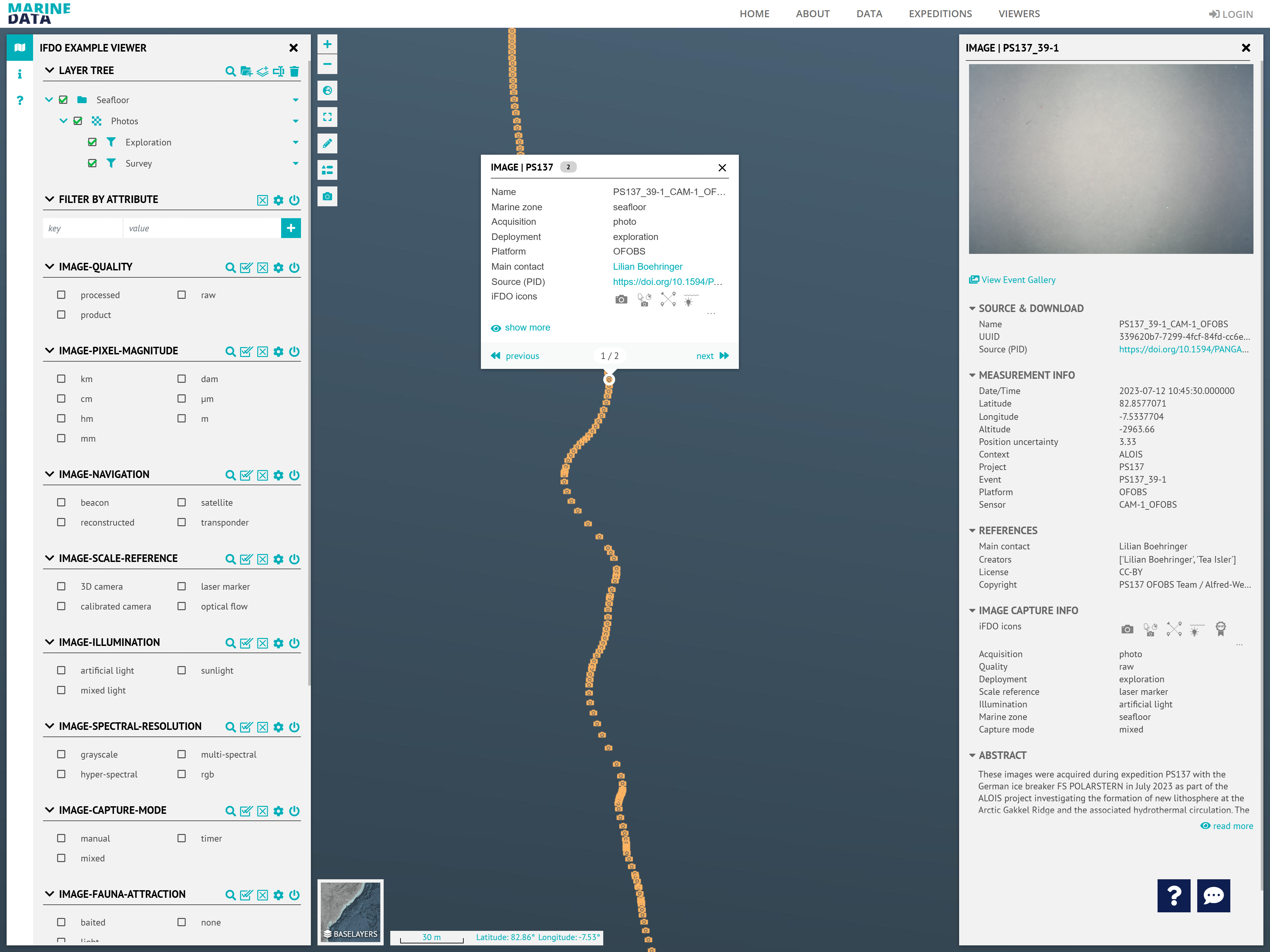
If you published your data, you might also be interested in your dataset being listed in the marina-data media or iFDO viewer. If you have published your dataset on PANGAEA, it will automatically be included in the marine data portal once it has received its DOI. However, if you placed your publication under moratorium, only the metadata for your dataset would be visible until the moratorium ended.
Should you have published your datasets in some other form, more effort will be required. In this case, either your SDI infrastructure can be integrated into the marine data portal, or we can harvest your datasets from an exchange location. Please refer to the O2A Viewer documentation in both cases.
Example Implementation
mermaid
---
config:
  look: classic
---

flowchart LR
    MDM["DShip MDM"]
    INGEST["O2A INGEST"]
    iDAS["Camera System"]
    PANGAEA["PANGAEA"]
    VIEWER["Marine Data Viewer"]

    MDM@{ shape: disk}
    INGEST@{ shape: disk}
    iDAS@{ shape: lean-r}
    PANGAEA@{ shape: disk}
    VIEWER@{ shape: terminal}

    iDAS -- Archive--> MDM
    MDM -- Processing --> MDM
    MDM -.-> INGEST
    INGEST -- Publish --> PANGAEA
PANGAEA -.-> VIEWERWe implemented the publication process for the OFOBS team with the additional goal of creating publication-ready datasets during the cruise. To achieve this, we divided the workload between an OFOBS team member and a remote data manager. After deployment, the team member uploaded the raw image and video footage to the DShip-MDM. The data manager then downloaded the raw data onto a separate network storage and processed it using Marimba, creating incomplete iFDOs. The team member then completed these using the iFDO Creator The completed dataset is then saved to the DShip-MDM. After the cruise, the MDM hard drives are automatically shipped to AWI and uploaded to O2A INGEST. This enables the team member to create a publication on PANGAEA without touching the data again. Following publication, the resulting datasets are also automatically findable via the O2A Viewers.
Boehringer, Lilian; Isler, Tea; Lion, Victor; Purser, Autun; Schlindwein, Vera (2024): Seafloor images collected along OFOBS profile PS137_39-1 during RV POLARSTERN cruise PS137. PANGAEA, https://doi.org/10.1594/PANGAEA.971418, In: Boehringer, L et al. (2024): Ocean Floor Observation and Bathymetry System (OFOBS) seafloor images of the Gakkel Ridge in the Arctic Ocean collected during RV POLARSTERN cruise PS137 dataset publication series. PANGAEA, https://doi.org/10.1594/PANGAEA.971422 ↩︎